
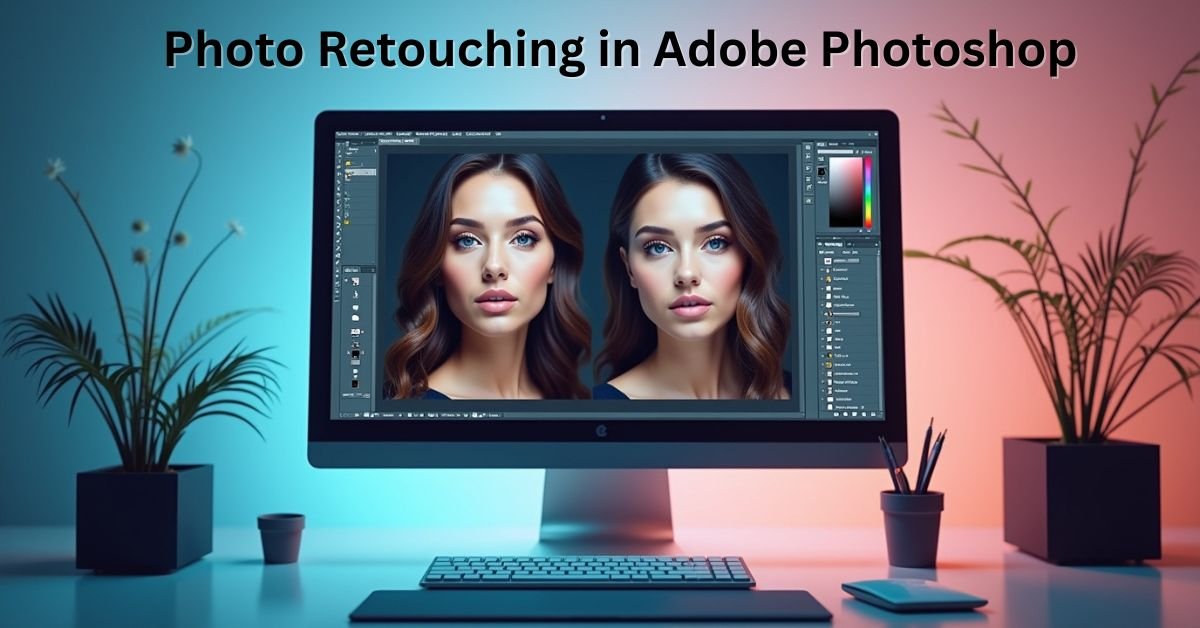
Adobe Photoshop is one of the most powerful and popular tools for photo editing and retouching. Whether you’re a professional photographer, graphic designer, or an enthusiast, mastering photo retouching in Photoshop can significantly enhance your images. In this ultimate guide, we’ll explore essential techniques, tips, and tools you need to perfect your photo retouching skills in Adobe Photoshop in 2025.
What Is Photo Retouching?
Photo retouching refers to the process of enhancing and improving the appearance of an image using digital editing tools. The goal is to fix imperfections, adjust lighting, improve colors, and create a visually appealing result. Adobe Photoshop provides a wide range of tools that make professional-level retouching accessible for everyone.

Why Is Photo Retouching Important?
- Professional Finish: Makes photos look polished and professionally edited.
- Remove Imperfections: Fix blemishes, wrinkles, unwanted objects, and noise.
- Enhance Features: Highlight important details like eyes, hair, and texture.
- Creative Freedom: Apply artistic effects and transform images for personal or commercial use.
Essential Tools for Photo Retouching in Adobe Photoshop
Before we dive into advanced techniques, it’s important to understand some of the essential Photoshop tools commonly used for photo retouching:
- Spot Healing Brush Tool: Quickly removes small imperfections and blemishes.
- Clone Stamp Tool: Allows copying pixels from one area of an image to another.
- Healing Brush Tool: Perfect for blending textures while repairing areas of an image.
- Dodge & Burn Tools: Used to lighten or darken specific parts of the image.
- Adjustment Layers: Non-destructive edits for color correction, brightness, contrast, and more.
- Frequency Separation: A powerful technique to separate texture from color for precise skin retouching.
Step-by-Step Photo Retouching Process in Photoshop
1. Open Your Image
Start by opening your high-resolution image in Adobe Photoshop. Navigate to File > Open and select the photo you want to retouch.
2. Duplicate the Background Layer
To preserve the original image, duplicate the background layer by right-clicking it and selecting Duplicate Layer. This ensures a non-destructive workflow.

3. Remove Blemishes and Imperfections
Use the Spot Healing Brush Tool or the Healing Brush Tool to remove spots, pimples, and small distractions. Adjust brush size for precision and gently paint over unwanted areas.
4. Frequency Separation for Skin Retouching
Frequency separation helps separate texture and color for detailed skin retouching without losing skin details:
- Duplicate the image twice: Name one layer “Low Frequency” (color info) and the other “High Frequency” (texture).
- Apply a Gaussian Blur on the Low Frequency layer to blur colors but keep general shapes.
- Use the Apply Image function on the High Frequency layer with settings to extract the texture.
- Edit each layer independently: Smooth out color tones on Low Frequency and fix skin texture on High Frequency.
5. Dodge and Burn for Depth
Use the Dodge Tool to brighten areas (e.g., highlights on cheeks) and the Burn Tool to darken shadows (e.g., jawline). Create a separate layer filled with 50% gray and set it to Soft Light for non-destructive editing.

6. Color Correction and Adjustment
Apply Adjustment Layers for brightness, contrast, hue/saturation, and curves to perfect the overall color tone of the image. This can drastically improve the final appearance of your photo.
7. Sharpen the Final Image
Use the High Pass Filter technique to sharpen important details without creating noise:
- Duplicate the final image layer.
- Apply the High Pass filter (Filter > Other > High Pass).
- Set the layer blend mode to Overlay or Soft Light.
8. Final Touches
Zoom in and check for any remaining flaws. Adjust exposure, saturation, or apply selective blurring to background elements to emphasize your subject.

Best Practices for Photo Retouching
- Non-Destructive Editing: Always use adjustment layers and work on duplicate layers.
- Use a Graphics Tablet: For more precise control when retouching details.
- Pay Attention to Skin Texture: Avoid over-smoothing – retain a natural look.
- Calibrate Your Monitor: Ensure accurate colors while editing.
- Save in High Resolution: Export images in high quality for print or web use.
Common Mistakes to Avoid in Photo Retouching
- Over-Retouching: Makes images look unnatural and artificial.
- Ignoring Color Balance: Uncorrected tones can ruin the overall image feel.
- Not Saving Iterations: Keep multiple versions of your edits to revert if needed.
Advanced Photo Retouching Tips
For experienced users, explore advanced techniques like:
- Frequency Separation Automation: Use Photoshop actions or plugins to speed up repetitive tasks.
- Use Camera RAW Filter: Apply raw corrections for better exposure control.
- Luminosity Masks: Make precise selections based on image brightness for localized adjustments.
Conclusion
Photo retouching in Adobe Photoshop is an essential skill for creating professional-quality images. By mastering tools like the Healing Brush, Frequency Separation, and Dodge & Burn, and following a structured workflow, you can transform ordinary photos into stunning visuals. Remember to always work non-destructively, preserve skin texture, and focus on natural results. With practice, your retouching will reach the next level, making your images stand out in the digital world of 2025.
Frequently Asked Questions (FAQ)
What is the best tool for removing blemishes in Photoshop?
The Spot Healing Brush Tool is excellent for removing small blemishes quickly, while the Healing Brush Tool is more precise for detailed areas.
How can I prevent over-retouching?
Work on separate layers, zoom out regularly to check the overall effect, and retain skin texture by using frequency separation carefully.
Should I use RAW images for retouching?
Yes, working with RAW images provides more flexibility for adjustments like exposure, contrast, and white balance without losing quality.
