
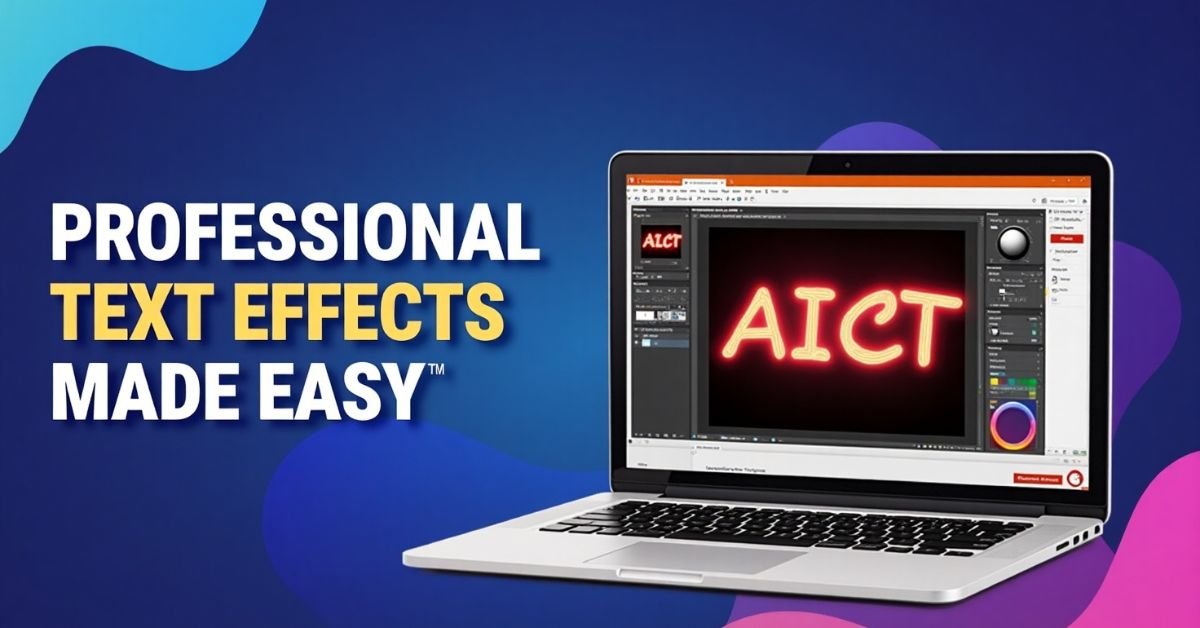
In today’s visually-driven digital world, adding professional text effects to your images can make your content stand out. Whether you are a blogger, social media manager, or content creator, using text creatively can enhance your images and grab the attention of your audience. The good news? You don’t need expensive software like Photoshop to create stunning text effects. Free tools are powerful enough to help you achieve professional results.
Why Adding Text Effects Matters
Text effects can transform ordinary images into eye-catching visual content. Here’s why it’s important:
- Boosts Engagement: Posts with appealing visuals get more likes, shares, and comments on social media.
- Enhances Branding: Customized text effects can reflect your brand’s personality and style.
- Improves Readability: Effective text placement ensures your message is communicated clearly.
- Professional Appeal: Well-designed images give your content a polished and professional look.
Best Free Tools to Add Text Effects
Several free tools allow you to add professional text effects to images without requiring advanced skills. Here are some of the top choices:
1. Canva
Canva is one of the most popular free graphic design tools. It offers an easy-to-use interface with a wide range of text effects.
- Features: Glow, shadow, curve, 3D text, gradient, and outline effects.
- Pros: Intuitive interface, templates for social media, blog posts, and marketing graphics.
- How to use:
- Sign up for a free Canva account.
- Select a template or custom image size.
- Click Text and type your message.
- Choose from Effects to apply shadows, neon, or curve effects.
- Download your image in PNG or JPG format.
2. Pixlr
Pixlr is a browser-based photo editor that allows you to add advanced text effects for free.
- Features: Shadow, reflection, outline, and gradient text effects.
- Pros: Works directly in your browser, no installation required, advanced layering options.
- How to use:
- Open Pixlr in your browser.
- Upload your image.
- Select the Text tool and type your message.
- Click on Effects to customize shadows, colors, and outline.
- Save your image in high resolution.
3. Fotor
Fotor is another free online image editor ideal for creating stylish text effects.
- Features: Shadow, neon, 3D, outline, and custom font effects.
- Pros: Free templates for social media posts, easy-to-use drag-and-drop functionality.
- How to use:
- Go to Fotor and upload your image.
- Click Text and choose a font style.
- Apply Effects like shadow, outline, or glow.
- Download the final image in your preferred format.
Step-by-Step Guide to Creating Professional Text Effects
Here’s a detailed process to help you add text effects like a pro using free tools:
Step 1: Choose the Right Image
The first step is to select a high-quality image. Avoid low-resolution images because text effects may appear pixelated. Free resources like Unsplash and Pixabay offer royalty-free images that are perfect for adding text.

Step 2: Select a Text Effect Style
Decide the type of text effect you want to use:
- Shadow: Makes text pop by creating depth.
- Outline: Highlights text and increases readability.
- Glow/Neon: Adds vibrancy and attention-grabbing effects.
- 3D: Gives a realistic, professional touch.
- Gradient: Adds a smooth color transition to text for modern visuals.
Step 3: Choose a Free Tool
Select the free tool that suits your needs. Canva is ideal for beginners, Pixlr for more advanced editing, and Fotor for creative, stylish effects.
Step 4: Add and Customize Text
After selecting the tool:
- Insert your chosen text.
- Select a suitable font that matches your image and branding.
- Apply the chosen effect (shadow, glow, outline, gradient, etc.).
- Adjust size, color, alignment, and spacing for maximum impact.
Step 5: Review and Export
Preview your image to ensure the text is readable and visually appealing. Export the final image in high resolution (PNG recommended for online use).
Tips for Adding Professional Text Effects
- Contrast is Key: Ensure your text color contrasts well with the background for readability.
- Keep It Simple: Avoid overcrowding your image with too many effects.
- Use Consistent Fonts: Stick to 1–2 fonts to maintain a professional look.
- Mind the Alignment: Proper text placement enhances visual balance.
- Experiment with Colors: Gradient and neon effects can add vibrancy, but always match your brand style.
Common Mistakes to Avoid
While adding text effects, beginners often make mistakes. Here’s what to avoid:
- Overusing Effects: Too many shadows or glows can distract from your message.
- Poor Font Choice: Comic-style fonts may not suit professional content.
- Ignoring Readability: Fancy effects are useless if the text is hard to read.
- Low-Resolution Images: Text effects look pixelated on blurry images.
Why Free Tools Are Enough for Professional Results
Many people assume that professional text effects require premium software. However, free tools like Canva, Pixlr, and Fotor are powerful enough for most needs:
- Offer a wide range of effects, templates, and fonts.
- Require no prior graphic design experience.
- Allow direct sharing on social media platforms.
- Save your time and money while producing professional results.
Conclusion
Adding professional text effects to your images doesn’t have to be complicated or expensive. With free tools like Canva, Pixlr, and Fotor, you can create visually stunning images that engage your audience and enhance your brand. By following simple steps—choosing the right image, picking the right text effect, and customizing it carefully—you can produce content that looks polished and professional. Start experimenting today and watch your images transform from ordinary to extraordinary!
FAQs About Adding Text Effects
1. Can I use free tools for commercial purposes?
Yes, most free tools allow commercial use, but always check the licensing terms of fonts and images you use.

2. Do I need graphic design experience to use these tools?
No. Tools like Canva and Fotor are beginner-friendly with intuitive interfaces.
3. Which format is best for exporting images with text effects?
PNG is recommended for high-quality online use, while JPG is suitable for smaller file sizes.
4. Can I animate text using free tools?
Yes, Canva offers free text animation features for social media posts and presentations.
5. Are there mobile apps for adding text effects?
Yes, Canva, Pixlr, and Fotor all have mobile apps, making it easy to edit on the go.