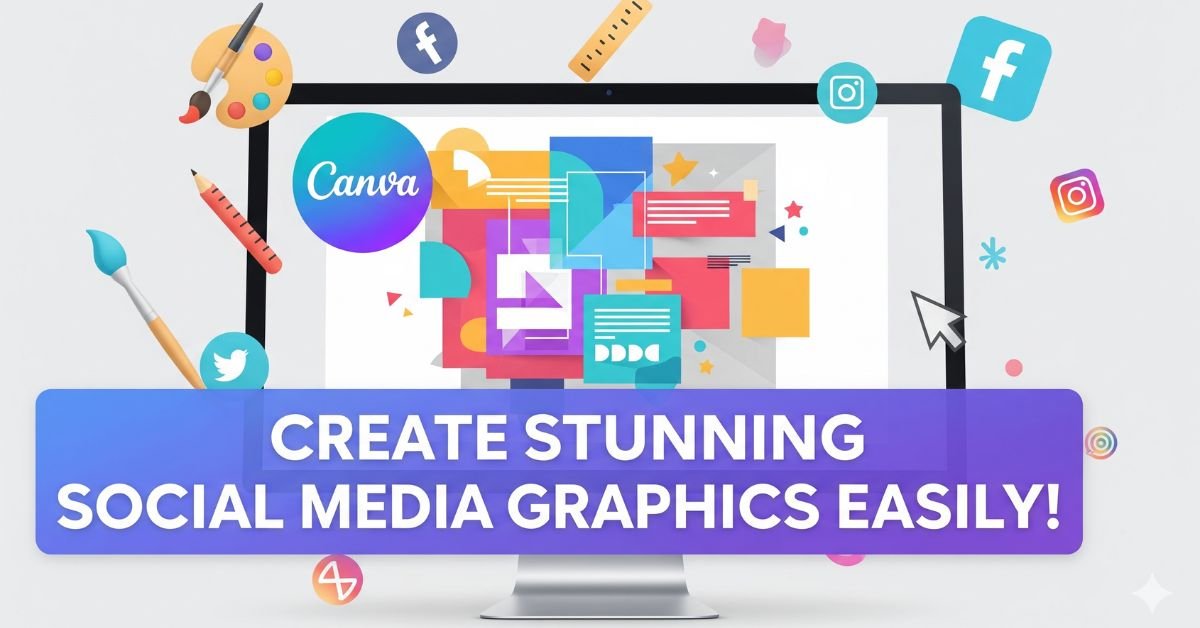
In today’s digital world, social media is one of the most powerful platforms for building your brand, engaging your audience, and driving traffic to your business. But with millions of posts published every day, how can you stand out? The answer lies in creating eye-catching social media graphics that grab attention and communicate your message effectively. One of the best tools available for this purpose is Canva.
Why Social Media Graphics Matter
Visual content is processed 60,000 times faster by the brain than text. That’s why graphics, images, and videos generate much higher engagement compared to plain text posts. Whether it’s a promotional post, an infographic, a quote, or an announcement, having attractive visuals increases the likelihood that your audience will stop scrolling and take action.
 Eid Mubarak Prompt 2026 | prompt seen
Benefits of Using Canva for Social Media Graphics
- User-Friendly Interface: Canva is designed for beginners and professionals alike, offering drag-and-drop simplicity.
- Templates Galore: Thousands of ready-to-use templates are available for various social media platforms like Instagram, Facebook, Twitter, and LinkedIn.
- Customization Options: Easily customize templates with your brand colors, fonts, images, and logos.
- Affordable Pricing: Canva offers a free plan with many features, plus a Pro plan for advanced functionalities.
Step-by-Step Guide: How to Create Eye-Catching Graphics in Canva
Step 1: Sign Up or Log In to Canva
Go to Canva.com and sign up for a free account if you don’t already have one. Existing users can simply log in. Canva also offers a mobile app if you prefer designing on your phone or tablet.
Step 2: Choose the Right Template

Once logged in, click on the “Create a Design” button. You’ll see predefined options for various social media platforms such as:
- Instagram Post
- Facebook Post
- Twitter Post
- LinkedIn Banner
- YouTube Thumbnail
Select the type of graphic you want to create, and Canva will automatically set the ideal dimensions for that platform.
Step 3: Pick an Attractive Template
Canva provides thousands of free and premium templates. Browse through categories like “Marketing”, “Quotes”, or “Infographics” to find a template that matches your style. A good template should have a balanced layout, legible fonts, and complementary color schemes.
Step 4: Customize Your Graphic
 Cartoon Style Photo Editing Prompt 2026
After selecting a template, it’s time to customize it:
- Change Text: Click on the text boxes to edit the message. Keep it concise and attention-grabbing. Use strong keywords related to your niche for SEO benefits.
- Adjust Colors: Match the color palette to your brand identity. Consistency in colors improves brand recognition.
- Upload Your Logo or Images: Personalize the design by uploading your own photos or logo. Canva also offers a wide library of stock photos.
- Fonts Matter: Use readable and appealing fonts. Canva provides font pairings to maintain consistency.
Step 5: Add Design Elements
Enhance your graphic by adding elements like:
- Icons
- Shapes
- Lines
- Charts (if needed for infographics)
Ensure that these elements don’t overpower your main message but rather support it. Minimalism often works best for clarity and appeal.
Step 6: Optimize for SEO
Although social media posts don’t directly impact website SEO, they can improve visibility and engagement, indirectly boosting your search rankings. Here’s how to optimize:
- Use keywords in your graphic text.
- Add relevant hashtags when posting on platforms like Instagram or Twitter.
- Include your website URL or social handles for brand recognition.
Step 7: Download and Publish
Once your design is ready, click the “Download” button. Choose the appropriate file format, typically PNG for high quality or JPG for faster loading. Canva also offers direct publishing to social platforms if you connect your accounts.
Advanced Tips for Even More Stunning Graphics
 Happy Holi Gemini AI Photo Editing Prompts 2026
Use Grids and Frames
Grids help align your images and text systematically, giving a professional look. Frames allow you to crop and display images in creative shapes, making your post visually appealing.
Play with Transparency
Adjust the transparency of images or overlays to create depth and ensure that your text stands out. This is especially useful when placing text over photos.
Consistency is Key
Maintain consistent fonts, colors, and styles across all your social graphics. This strengthens brand identity and makes your posts recognizable at a glance.
Use Animation
Canva Pro allows you to add animations to your graphics, making them more engaging, especially for stories and video posts.
Common Mistakes to Avoid
- Too Much Text: Overloading your graphic with words makes it hard to read.
- Poor Contrast: Ensure text stands out against the background.
- Ignoring Platform Guidelines: Each social media platform has optimal dimensions—avoid pixelation or cropping issues by using correct sizes.
- Low-Quality Images: Always use high-resolution images for a professional appearance.
Conclusion
Creating stunning social media graphics doesn’t have to be complicated or expensive. With Canva’s easy-to-use platform, you can design professional-quality posts in just a few steps. Focus on clarity, brand consistency, and creativity. Don’t forget to optimize your graphics with keywords and hashtags to maximize reach and engagement.
Start creating eye-catching graphics today and watch your social media engagement soar!
FAQs About Social Media Graphics in Canva
Q1: Is Canva free to use for social media graphics?
A1: Yes, Canva offers a free plan with access to thousands of templates, images, and design tools. However, the Pro version unlocks more advanced features like animations and premium stock photos.
Q2: What is the best image format to use?
A2: PNG is best for high-quality images with transparent backgrounds, while JPG is ideal for faster loading on web pages.
Q3: Can I use Canva graphics for commercial purposes?
A3: Yes, but make sure to check the licensing terms of any stock photos or elements you use, especially from the free library.